
The Ticker panel in Blogsy lets you display a scrolling news marquee between the header and the hero section, perfect for highlighting breaking stories, announcements, or trending posts.

Location and placement #
- Go to Appearance → Customize → Ticker.
- When enabled, the ticker bar appears below the header and above the Hero section on the pages you select.
Enable Ticker and basic settings #
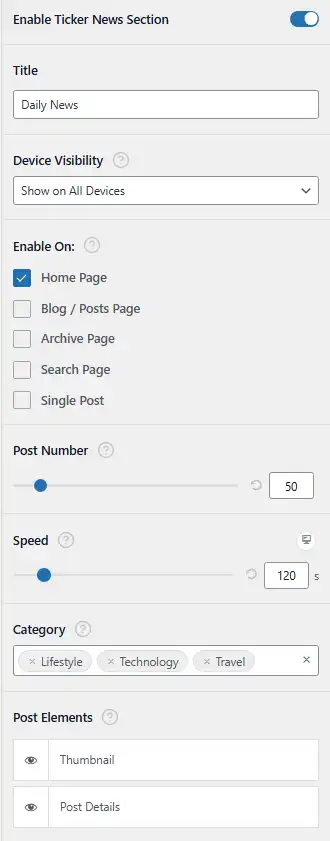
- Enable Ticker News Section
- Turn this on to display the ticker on your site.
- When disabled, all other ticker settings are ignored and the marquee is hidden.
- Title
- Sets the label shown at the start of the ticker bar (for example, “Daily News”, “Breaking”, “Trending Now”).
- This appears as a small badge, as shown in the front‑end example.
- Device Visibility
- Choose where the ticker should be displayed:
- Show on All Devices
- Hide on Desktop / Hide on Tablet / Hide on Mobile (depending on your available options).
- Use this to disable the ticker for smaller screens if you prefer a cleaner layout.
- Choose where the ticker should be displayed:
Where the ticker appears #
- Enable On
- Select on which templates the ticker should be visible:
- Home Page – Displays the ticker on the front page.
- Blog / Posts Page – Shows it on the main posts page.
- Archive Page – Displays it on category, tag, or other archives.
- Search Page – Shows ticker above search results.
- Single Post – Displays ticker at the top of individual posts.
- You can check multiple options to show the ticker across multiple areas of your site.
- Select on which templates the ticker should be visible:
Content settings #
- Post Number
- Use the slider or number input to define how many posts are included in the ticker.
- For example, set it to 10 to rotate through the latest 10 posts from the selected categories.
- Category
- Choose one or more categories to pull posts from (for example, Lifestyle, Technology, Travel).
- The ticker will only display posts that belong to the selected categories, letting you focus on specific news sections.
- Post Elements
- Control which elements are shown inside each ticker item:
- Thumbnail – Shows a small featured image/avatar before the post details, giving a visual cue.
- Post Details – Displays text details such as date and post title (as seen in the example where the date and title scroll horizontally).
- Use the “eye” icons to toggle each element on or off.
- Control which elements are shown inside each ticker item:
Speed and responsive behavior #
The ticker is a horizontal marquee of posts that continuously scrolls; speed can be adjusted per device type.
- Speed
- Adjust the scroll speed using the slider or number input (in seconds).
- In Blogsy, speed can be tuned separately for desktop, tablet, and mobile (via device-specific controls attached to the same field), so you can:
- Use a slower speed on desktop for relaxed reading.
- Use a slightly faster or optimized speed on mobile so users see more items in a shorter scroll area.
Configure the Ticker section to surface your most important updates prominently, without taking much vertical space and while keeping the main layout clean and focused.