
The Featured Category section in Blogsy lets you showcase selected categories as large, clickable cards with custom images and colors.
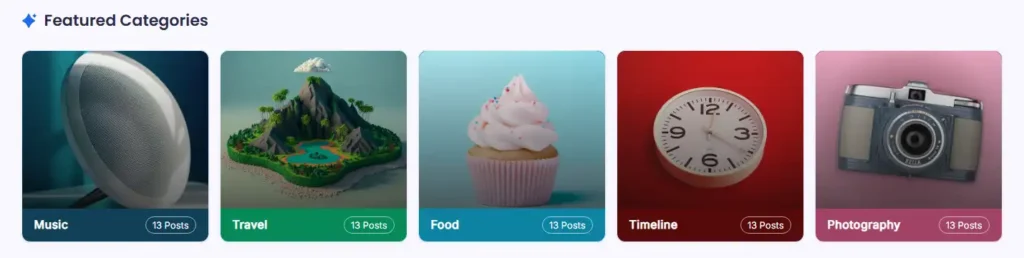
This is perfect for guiding visitors into your most important areas like Music, Travel, Food, Timeline, and Photography.
Location #
Go to Appearance → Customize → Featured Category.
From here you can enable the section, choose where it appears, configure each featured category card, and control the layout.
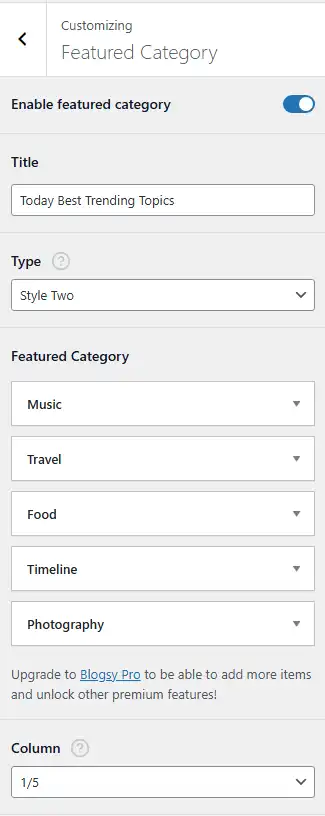
- Enable featured category
- Turn this on to display the Featured Category section on your site.
- When disabled, the entire section is hidden everywhere, regardless of other settings.
- Title
- Sets the heading shown above the cards (for example, “Featured Categories” or “Today Best Trending Topics”).
- Type
- Select a visual style for the section, such as Style One, Style Two, etc.
- Different styles may change card shape, overlay, and how the post count badge (“13 Posts”) is displayed.
- In the screenshot example, Style Two is used for full‑bleed image cards with a colored footer.
Featured Category items #
Each card in the section is configured as a repeater item.
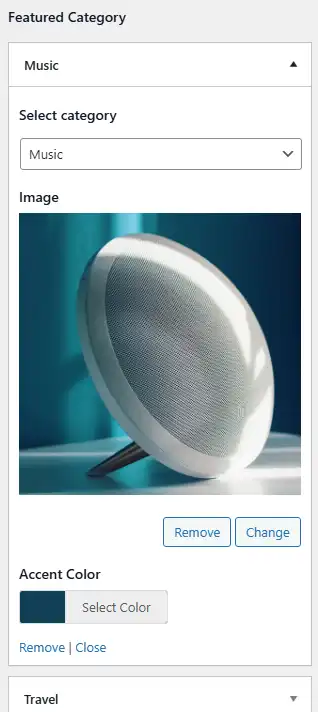
For each featured category slot (e.g., Music, Travel, Food, Timeline, Photography):
- Select category
- Choose which blog category this card represents.
- The card title and post count are taken from this category (e.g., “Music” with “13 Posts”).
- Image
- Upload or select an image from the Media Library to use as the main card background.
- Pick something visually related to the category to create strong visual cues for users.
- Accent Color
- Choose a color used for overlays, badges, or the footer strip beneath the image (depending on the style).
- This helps differentiate categories and tie them to your brand palette.
By default, the free version of Blogsy lets you add a limited number of featured items (for example, five).
Column layout and visibility options #
- Column
- Controls how many cards are displayed per row.
- Options may look like 1/3, 1/4, 1/5, etc.; in the screenshot, 1/5 is used to show five cards in a single row.
- Choose a wider column (e.g., 1/3) for fewer but larger cards, or a narrower column (e.g., 1/5) for many compact cards.
- Device Visibility
- Controls where the section is visible based on device:
- Show on All Devices
- Hide on Desktop / Hide on Tablet / Hide on Mobile (options depend on your implementation).
- Use this to simplify the layout on small screens if needed.
- Controls where the section is visible based on device:
- Enable On
- Choose where the Featured Category section appears:
- Home Page
- Blog / Posts Page
- Archive Page
- Search Page
- Single Post
- You can enable multiple templates, for example, show featured categories on both the homepage and main blog page.
- Choose where the Featured Category section appears:
How the Featured Category section behaves #
- Each card links to its selected category archive, so visitors can click directly into that topic.
- The post count badge (e.g., “13 Posts”) is automatically calculated from the number of posts in that category.
Use the Featured Category section to quickly expose your main content pillars, improve navigation, and make your homepage feel more curated and magazine‑like.