
Skip to the content
Peregrine KnowledgebasePeregrine Knowledgebase
  • Go to website
  • Go to website
  • Yelp
  • Facebook
  • Twitter
  • Instagram
  • Email

How can we help you?

Hester Pro

21
  • Theme Installation
  • Steps after Activating Hester Pro theme
  • Add widgets in sidebar or in Footer widget area
  • Enable front page sections
  • Home Sections
    • Slider Section
    • Info section
    • Service section
    • About section
    • Team section
    • Testimonial section
    • Pricing plan section
    • Call to Action section
    • Gallery section
    • Fun-facts section
    • Feature section
    • Steps to start section
    • Work history / timeline section
    • Workflow section
    • Clients section
    • Extra section
    • Design options

Bloglo Pro & BlogHash Pro common

2
  • Add social media profile links in header
  • Post Formats

ShopWell Pro

59
  • Download & Install ShopWell Addons Plugin
  • How to Install and Activate Required and Recommended Plugins
  • Import Demo
  • Configure Product Images in WooCommerce
  • 🔨 Product Archive Builder
  • 🛠️ Single Product Builder
  • How to change homepage products in the ShopWell free theme?
  • Customizer
    • General
    • Styling
    • Typography
    • Topbar
    • Header
      • Topbar
      • Campaign Bar
      • Header Layout
      • Header specific pages
      • Overriding the Header on Specific Pages
      • Header Builder
      • Sticky Header
      • Header Background
      • Header Elements
        • 🔍 Configuring the Header Search in ShopWell Theme
        • 👤 Account
        • ❤️ Wishlist
        • 🔄 Compare
        • 🛒 Cart
        • 📝 Custom Text
        • Preferences 🌍💱
        • View History
        • 📌 Primary Menu
        • 📌 Secondary Menu
        • 🗂️ Category Menu
        • 🍔 Hamburger Menu
      • Mega Menu
        • Mega Menu Vertical
        • 🍔 Mega Menu Hamburger
        • 🧩 Configure Mega Menu
        • Mega Menu Horizontal
    • Footer
      • Footer
      • Overriding the Footer on specific pages
  • Elementor
    • ⚙️ Elementor Basic Configuration Guide
    • Templates
    • 📢 Popup Builder
    • ShopWell Builder
    • Widgets
      • 🛍️ Product Deals Grid / Carousel
  • Pages
    • 📄 Creating a Page
    • ⚙️ Display Settings
  • Woocommerce
    • 🛒 Getting Started with WooCommerce
    • 📄 WooCommerce Pages
    • 🛒 Customize the Checkout Page
    • 📦 Create an Order Tracking Page
    • 👤 My Account Page Setup in WooCommerce
    • 🛍️ Catalog Mode
  • Shop
    • WishList & Compare
    • 💱 Currency Settings
    • 🛍️ Shop Display
    • 🧩 Product Filters
  • Mobile
    • Topbar
    • Header
    • Footer
    • Miscellaneous
  • Translation
    • Quick Start Guide: TranslatePress

Blogsy Lite

2
  • Installation and Demo Import
  • Customizer : General Options
    • General
  • Home
  • Docs
  • Typography
View Categories

Typography

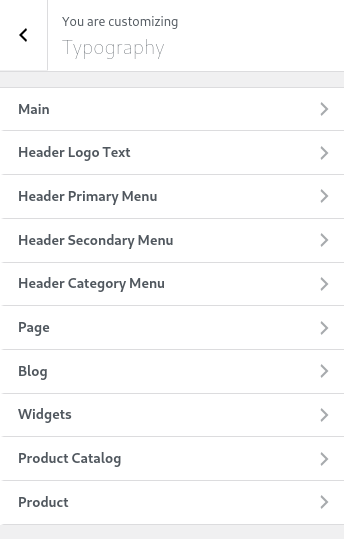
The Typography panel in the Customizer allows you to configure the font settings for various sections of your website. You can access these settings by navigating to:

Admin Dashboard > Appearance > Customize > Typography

The panel is divided into multiple sections, each controlling typography settings for different elements of the site.

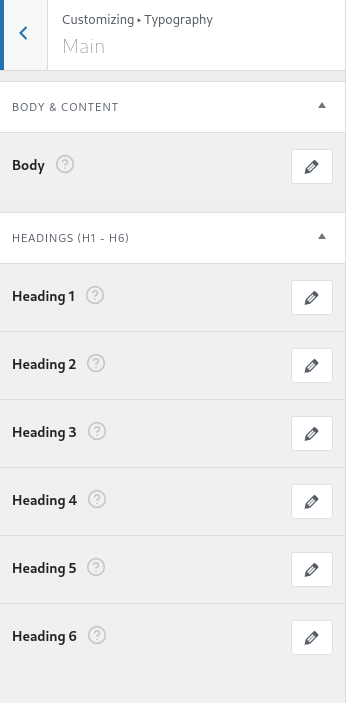
Main #

This section allows you to configure typography settings for the entire site, including the body text and heading styles.

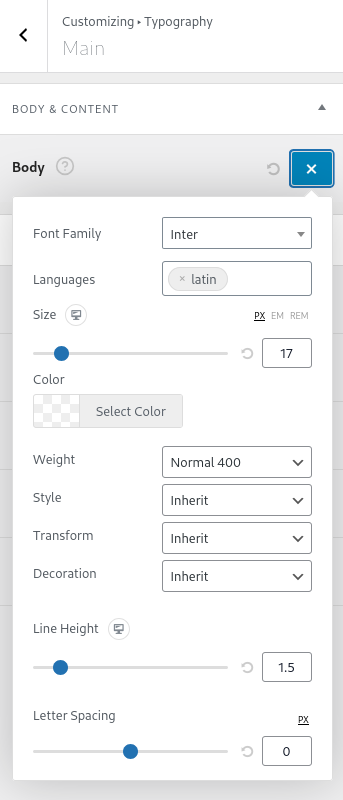
Body & Content #

  • Font Family: Choose the font for body text.
  • Languages: Set specific language subsets for fonts that support it.
  • Size: Adjust the font size in px, em, or rem.
  • Color: Select a color for the body text.
  • Weight: Set font weight (e.g., Normal 400, Bold 700).
  • Style: Choose between Normal, Italic, or Oblique styles.
  • Transform: Convert text to Uppercase, Lowercase, or Capitalized.
  • Decoration: Apply Underline, Overline, or Strikethrough.
  • Line Height: Adjust spacing between lines.
  • Letter Spacing: Modify spacing between letters.

Headings (H1 – H6) #

Each heading (H1 to H6) has individual typography settings similar to the body text, allowing you to fine-tune font appearance for headings.

Header Logo Text #

Customize the font, size, weight, and styling for the text-based site logo if used instead of an image.

Header Primary Menu #

Control the typography of the primary navigation menu and it’s sub-menus.

Header Secondary Menu #

Manage the styling of secondary navigation menus and it’s sub-menus.

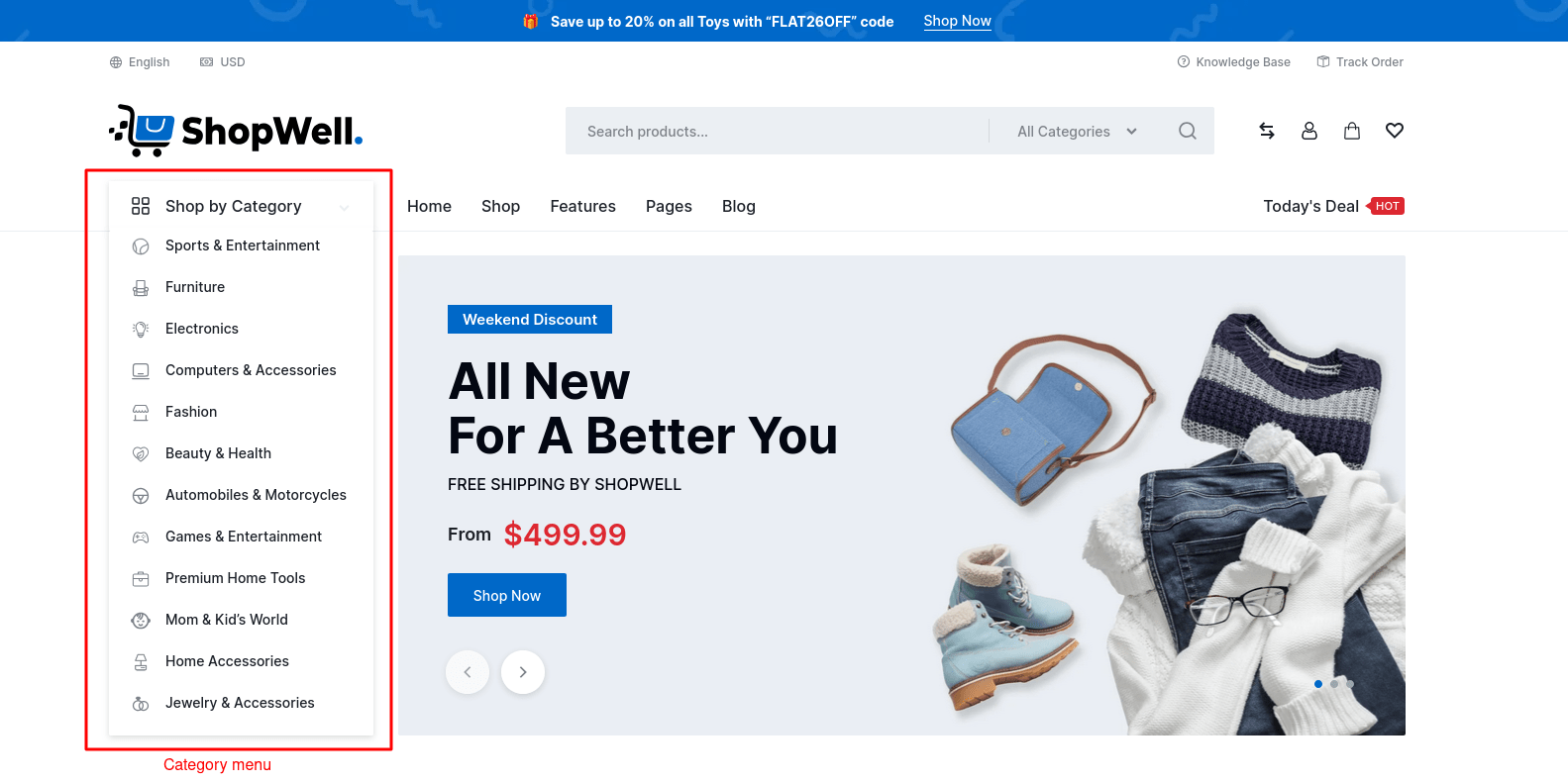
Header Category Menu #

Adjust typography settings for category navigation menus and it’s sub-menus.
Page #

Set typography for page title, ensuring consistency across standard pages.

Blog #

Control font settings for blog page.

  • Blog Header Title: Customize the font of Blog page header.
  • Blog Header Description: Customize the font of the description of Blog page header.
  • Blog Post Title: Customize the font of post title on Blog page.
  • Blog Post Excerpt: Customize the font of post excerpt on Blog page.

Widgets #

Customize the typography of widget titles inside sidebars or footer areas.

Product Catalog #

This section provides typography options for the product name and description on product catalog pages, including shop, product category, and product tag pages.

  • Page Header Title: Customize the font for the page header title on product catalog pages.
  • Blog Header Description: Customize the font of the page header description on product catalog pages.
  • Product Name: Customize the font for the product name on product catalog pages.

Product #

This section offers typography options for the product name and description on the single product page.


By configuring the Typography settings, you can maintain a cohesive and professional design across your website, ensuring readability and consistency.

Table of Contents
  • Main
    • Body & Content
    • Headings (H1 - H6)
  • Header Logo Text
  • Header Primary Menu
  • Header Secondary Menu
  • Header Category Menu
  • Page
  • Blog
  • Widgets
  • Product Catalog
  • Product

© 2025 Peregrine Knowledgebase

Powered by WordPress

To the top ↑ Up ↑