
Blog Page #
The Blog Page / Archive panel controls how posts are displayed on your main blog page, category archives, tag archives, author archives, and date archives.
Location #
Go to Appearance → Customize → Blog Page / Archive.
Changes here affect all archive-type pages where a list of posts is shown (including the main blog page if it is set to display your latest posts).
Layout #
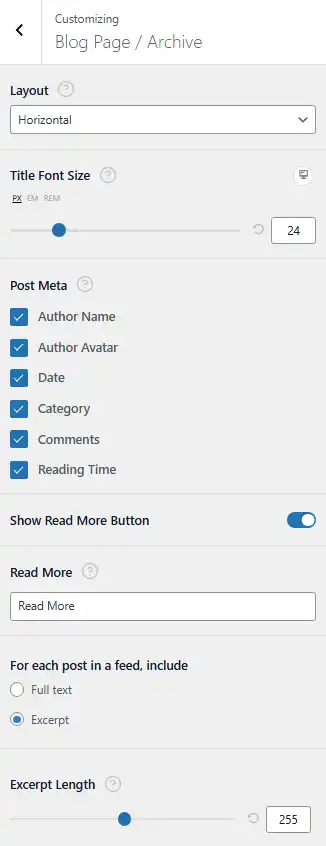
Use the Layout dropdown to choose how each post card is displayed.
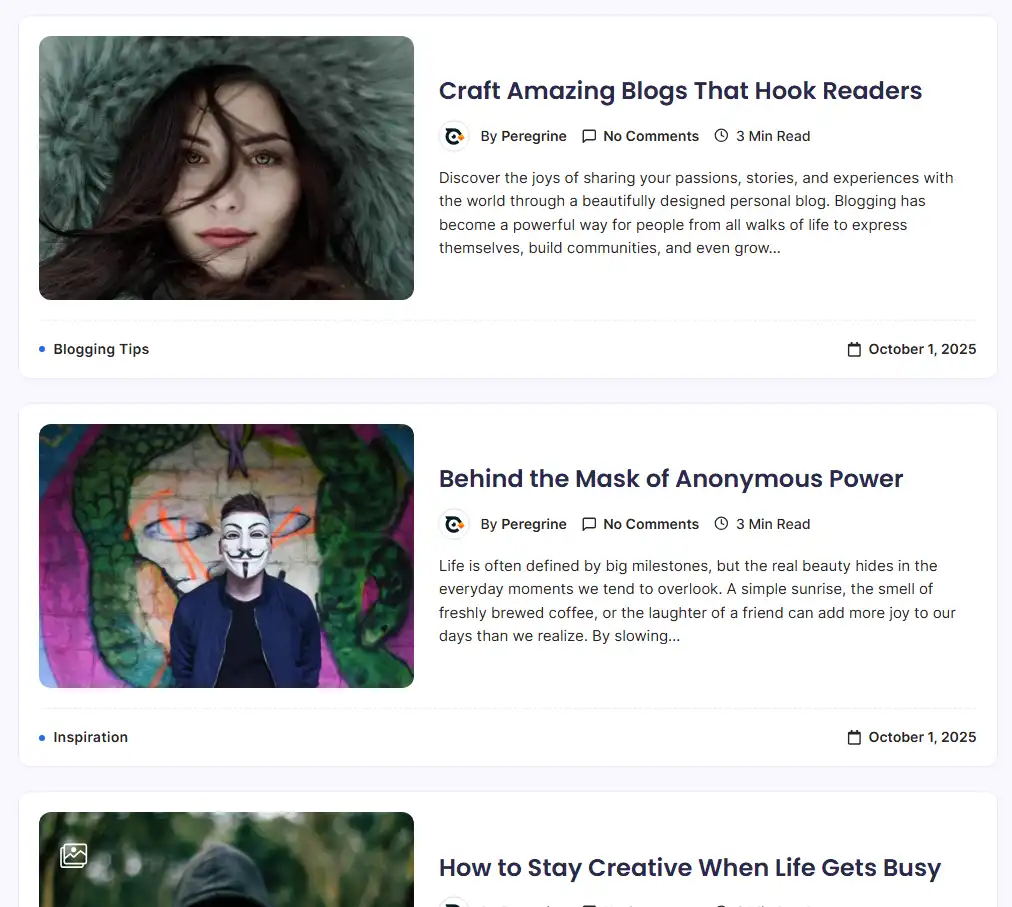
- Horizontal
- Displays the featured image on one side (left or right, depending on your theme design) and the post content (title, meta, excerpt, button) on the other, creating a card similar to the example screenshot.
- This layout is ideal for posts with strong visuals, as the image gets plenty of space beside the text.
- Vertical
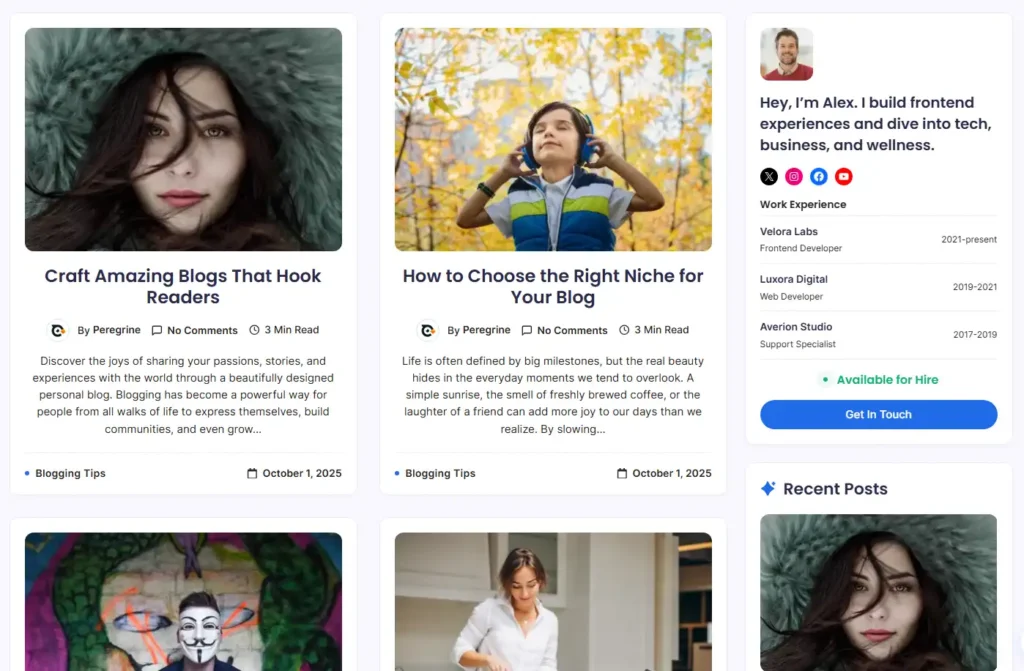
- Stacks the featured image above the content, creating traditional blog cards.
- When Vertical is selected, additional options appear:
- Masonry blog: Enable this to create a masonry-style grid where post cards have variable heights and arrange tightly without fixed rows. This works well when posts have different excerpt lengths or featured image sizes.
- Align center: Center-aligns the content inside each post card (title, meta, excerpt, button) for a more minimal, magazine-style look.
- Layout Column: Choose how many columns to use for the posts grid:
- Full width – Single column spanning the full content width.
- 1/2 – Two columns.
- 1/3 – Three columns.
- 1/4 – Four columns (best for short post cards and strong imagery).
- Cover
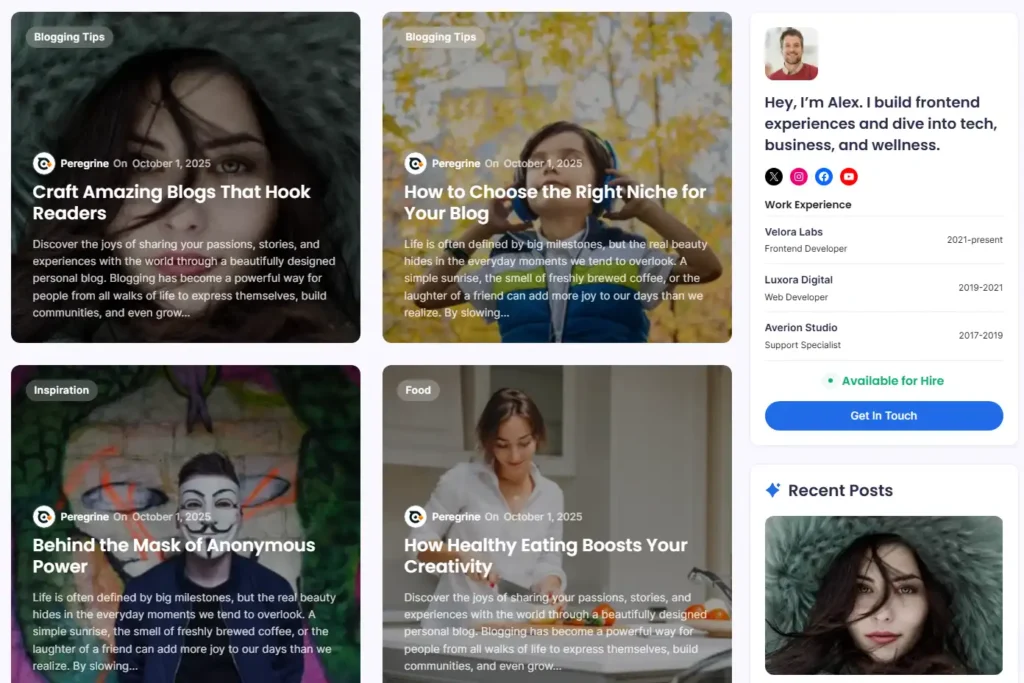
- Uses the post’s featured image as the background of the entire card, with the title and meta layered on top.
- This layout is best for visual, magazine-style archives where each post card looks like a cover or hero tile.
- You can also choose columns for this style.
Title Font Size #
- Title Font Size: Adjust the font size for post titles in archives using the slider or number input.
- You can switch units (px / em / rem) using the icons next to the label if available; larger values make titles more prominent, smaller values create a compact list.
Post Meta #
Under Post Meta, you can toggle which metadata appears under each post title.
- Author Name: Shows the name of the post author.
- Author Avatar: Shows the author’s avatar beside their name.
- Date: Displays the published date of the post.
- Category: Shows category links, often under the title or at the bottom of the card.
- Comments: Shows the number of comments (for example, “No Comments”, “3 Comments”).
- Reading Time: Displays the estimated time required to read the post (e.g., “3 Min Read”), calculated from the content length.
You can enable or disable each item independently to create a clean or detailed meta section, as shown in the post card example.
Read More button #
- Show Read More Button: Toggle this on to display a call‑to‑action button (for example, “Read More”) on each post card.
- Read More: Customize the button label text (e.g., “Read More”, “Continue Reading”, “View Post”).
- When enabled, the button links to the single post page and helps users understand where to click.
Excerpt and content length #
These controls determine how much content is shown per post in the archive.
- For each post in a feed, include:
- Full text – Shows the full post content on the archive page. This can make pages very long and is usually not recommended for blogs with many posts.
- Excerpt – Shows a shortened version of the content. This is the recommended option for most sites.
- Excerpt Length (only when Excerpt is selected):
- Use the slider or number input to set the maximum excerpt length (in characters or words, depending on your implementation).
- Higher values show more of the post; lower values keep cards compact.
- Excerpt More:
- Customize the trailing text appended at the end of the excerpt, such as
...or[…]. - This appears after the truncated excerpt to indicate that there is more content available on the single post page.
- Customize the trailing text appended at the end of the excerpt, such as
By combining the Layout, Post Meta, Read More button, and Excerpt options, you can design archive pages that match your blog’s style—from clean, minimal grids to rich magazine-style lists with detailed meta and strong imagery.
Single post: Hero Layout #
The Single Post – Hero Layout panel controls the metadata and hero (featured image) style used on individual post pages in Blogsy.
Location #
Go to Appearance → Customize → Single Post → Hero Layout.
Settings here affect how the top section of each single post looks, including which meta items are shown and how the featured image is displayed.
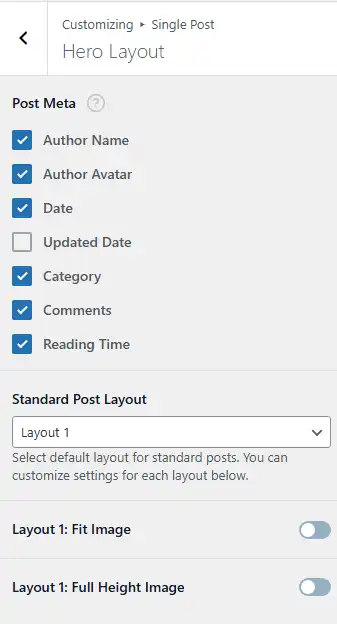
Post Meta #
Under Post Meta, choose which pieces of information appear around the post title in the hero area.
- Author Name: Shows the name of the post author.
- Author Avatar: Displays the author’s avatar next to their name.
- Date: Shows the original published date of the post.
- Updated Date: When enabled, displays the last updated date (useful for evergreen or regularly updated content).
- Category: Shows the categories assigned to the post, usually as clickable links.
- Comments: Displays the number of comments for the post.
- Reading Time: Shows the estimated reading time (for example, “5 Min Read”), based on the length of the post content.
You can toggle each item on or off to create a minimal or detailed hero meta section, depending on your needs.
Standard Post Layout #
- Standard Post Layout: Use this dropdown to select the default hero layout for regular posts (for example, “Layout 1”).
- This layout determines the overall structure of the hero area—position of the featured image, title, meta, and background style.
- You can fine‑tune behavior for each layout using the options that appear below (e.g., Fit Image and Full Height Image for Layout 1).
Layout 1 options #
When you select a layout other layout control will appear e.g. when Layout 1 is selected as the standard layout, additional toggles control how the featured image behaves:
- Layout 1: Fit Image
- When enabled, the hero image is adjusted to fit nicely within the available area without cropping important parts (depending on your implementation, typically using “contain” or similar behavior).
- This option is useful when you want to avoid aggressive cropping and keep the entire image visible.
- Layout 1: Full Height Image
- When enabled, the hero section stretches vertically so the featured image fills a taller, more immersive area at the top of the post.
- This creates a bold, “full-height” hero look, ideal for posts where the featured image is a key visual element.
By combining Post Meta visibility, the Standard Post Layout, and the layout-specific options (Fit Image and Full Height Image), you can design single post headers that match your brand—from simple, text-focused posts to visually rich hero layouts.
Note: In Blogsy addons plugin you will get more layout and customization options.