
Skip to the content
Peregrine KnowledgebasePeregrine Knowledgebase
  • Go to website
  • Go to website
  • Yelp
  • Facebook
  • Twitter
  • Instagram
  • Email

How can we help you?

Popular Search socialheadersocial mediahowimage

Hester Pro

21
  • Theme Installation
  • Steps after Activating Hester Pro theme
  • Add widgets in sidebar or in Footer widget area
  • Enable front page sections
  • Home Sections
    • Slider Section
    • Info section
    • Service section
    • About section
    • Team section
    • Testimonial section
    • Pricing plan section
    • Call to Action section
    • Gallery section
    • Fun-facts section
    • Feature section
    • Steps to start section
    • Work history / timeline section
    • Workflow section
    • Clients section
    • Extra section
    • Design options

Bloglo Pro & BlogHash Pro common

2
  • Add social media profile links in header
  • Post Formats

ShopWell Pro

59
  • Download & Install ShopWell Addons Plugin
  • How to Install and Activate Required and Recommended Plugins
  • Import Demo
  • Configure Product Images in WooCommerce
  • 🔨 Product Archive Builder
  • 🛠️ Single Product Builder
  • How to change homepage products in the ShopWell free theme?
  • Customizer
    • General
    • Styling
    • Typography
    • Topbar
    • Header
      • Topbar
      • Campaign Bar
      • Header Layout
      • Header specific pages
      • Overriding the Header on Specific Pages
      • Header Builder
      • Sticky Header
      • Header Background
      • Header Elements
        • 🔍 Configuring the Header Search in ShopWell Theme
        • 👤 Account
        • ❤️ Wishlist
        • 🔄 Compare
        • 🛒 Cart
        • 📝 Custom Text
        • Preferences 🌍💱
        • View History
        • 📌 Primary Menu
        • 📌 Secondary Menu
        • 🗂️ Category Menu
        • 🍔 Hamburger Menu
      • Mega Menu
        • Mega Menu Vertical
        • 🍔 Mega Menu Hamburger
        • 🧩 Configure Mega Menu
        • Mega Menu Horizontal
    • Footer
      • Footer
      • Overriding the Footer on specific pages
  • Elementor
    • ⚙️ Elementor Basic Configuration Guide
    • Templates
    • 📢 Popup Builder
    • ShopWell Builder
    • Widgets
      • 🛍️ Product Deals Grid / Carousel
  • Pages
    • 📄 Creating a Page
    • ⚙️ Display Settings
  • Woocommerce
    • 🛒 Getting Started with WooCommerce
    • 📄 WooCommerce Pages
    • 🛒 Customize the Checkout Page
    • 📦 Create an Order Tracking Page
    • 👤 My Account Page Setup in WooCommerce
    • 🛍️ Catalog Mode
  • Shop
    • WishList & Compare
    • 💱 Currency Settings
    • 🛍️ Shop Display
    • 🧩 Product Filters
  • Mobile
    • Topbar
    • Header
    • Footer
    • Miscellaneous
  • Translation
    • Quick Start Guide: TranslatePress

Blogsy Lite

14
  • Installation and Demo Import
  • Customizer : General Options
    • General (Logo, colors, typography and misc)
    • Top bar
    • Header & Footer
    • Blog page / Archive and Single Post
    • Sidebar
    • Breadcrumbs and Dark Mode
  • Customizer: Home sections
    • Highlight Breaking News with the Ticker Section
    • Hero Section – Featured Post Slider or Custom Hero Content
    • Stories
    • Featured Category
    • Featured Links
    • Posts You Might Like
    • Advertisement
  • Home
  • Docs
  • Featured Links
View Categories

Featured Links

The Featured Links section in Blogsy lets you showcase custom links as visually rich cards with background images and accent overlays.
Use it to promote landing pages, categories, external resources, or any URL you want users to notice.
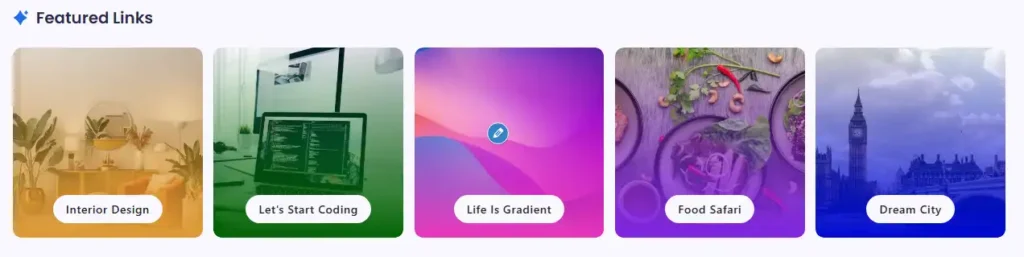
Location #

Go to Appearance → Customize → Featured Links.
From here you can enable the section, choose its style and layout, and add individual featured link cards.

Enable and basic settings #

  • Enable featured links
    • Turn this on to display the Featured Links section on your site.
    • When disabled, the section is hidden everywhere.
  • Title: Sets the heading above the cards, for example “Featured Links” or “Quick Access”.
  • Style: Select a visual style (e.g., Style One, Style Two, Style Three).
  • Column: Controls how many cards are displayed per row (for example 1/3, 1/4, 1/5).
  • Device Visibility: Decide on which devices the section should appear (Show on All Devices, hide on specific breakpoints).
  • Enable On
    • Choose which templates should display Featured Links:
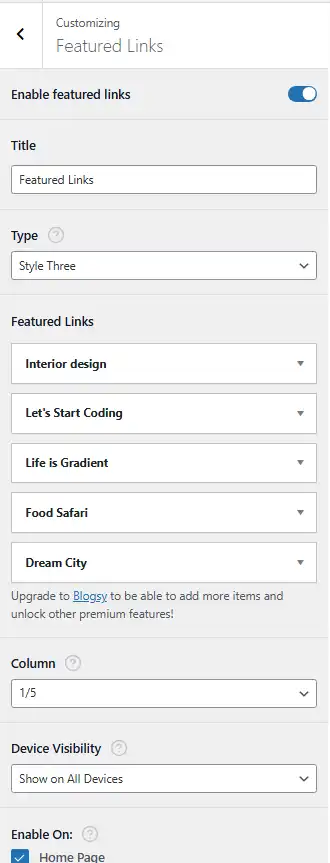
      • Home Page
      • Blog / Posts Page
      • Archive Page
      • Search Page
      • Single Post
    • Enable multiple options if you want the same section to appear across different page types.

Configuring individual Featured Links #

Each card is configured as a repeater item under Featured Links.

  • Select feature link
    • Choose or create a link using the link control.
    • You can link to:
      • Internal pages or posts (e.g., a detailed “Interior Design” article or landing page).
      • Category or tag archives.
      • External URLs (e.g., a portfolio or external resource).
    • The link text becomes the label displayed on the card’s button (e.g., “Interior Design”).
  • Image
    • Upload or select a background image for this card from the Media Library.
    • This image is used as the main visual for the card, behind the overlay and button label.
  • Accent Color
    • Choose the overlay/gradient color applied on top of the image.
    • This color helps differentiate cards and keep the section aligned with your brand palette.
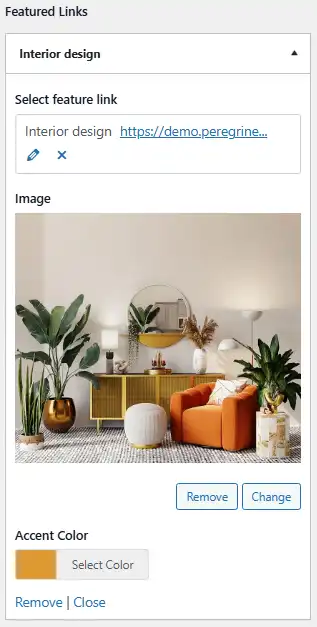
You can add multiple Featured Links items (up to the free‑version limit) and reorder them by dragging within the repeater.

By combining custom links, strong imagery, and clear labels, the Featured Links section acts as a visual navigation hub that quickly directs visitors to the most important destinations on your site.

Featured CategoryPosts You Might Like
Table of Contents
  • Location
  • Enable and basic settings
  • Configuring individual Featured Links

© 2026 Peregrine Knowledgebase

Powered by WordPress

To the top ↑ Up ↑