
Skip to the content
Peregrine KnowledgebasePeregrine Knowledgebase
  • Go to website
  • Go to website
  • Yelp
  • Facebook
  • Twitter
  • Instagram
  • Email

How can we help you?

Popular Search socialheadersocial mediahowimage

Hester Pro

21
  • Theme Installation
  • Steps after Activating Hester Pro theme
  • Add widgets in sidebar or in Footer widget area
  • Enable front page sections
  • Home Sections
    • Slider Section
    • Info section
    • Service section
    • About section
    • Team section
    • Testimonial section
    • Pricing plan section
    • Call to Action section
    • Gallery section
    • Fun-facts section
    • Feature section
    • Steps to start section
    • Work history / timeline section
    • Workflow section
    • Clients section
    • Extra section
    • Design options

Bloglo Pro & BlogHash Pro common

2
  • Add social media profile links in header
  • Post Formats

ShopWell Pro

59
  • Download & Install ShopWell Addons Plugin
  • How to Install and Activate Required and Recommended Plugins
  • Import Demo
  • Configure Product Images in WooCommerce
  • 🔨 Product Archive Builder
  • 🛠️ Single Product Builder
  • How to change homepage products in the ShopWell free theme?
  • Customizer
    • General
    • Styling
    • Typography
    • Topbar
    • Header
      • Topbar
      • Campaign Bar
      • Header Layout
      • Header specific pages
      • Overriding the Header on Specific Pages
      • Header Builder
      • Sticky Header
      • Header Background
      • Header Elements
        • 🔍 Configuring the Header Search in ShopWell Theme
        • 👤 Account
        • ❤️ Wishlist
        • 🔄 Compare
        • 🛒 Cart
        • 📝 Custom Text
        • Preferences 🌍💱
        • View History
        • 📌 Primary Menu
        • 📌 Secondary Menu
        • 🗂️ Category Menu
        • 🍔 Hamburger Menu
      • Mega Menu
        • Mega Menu Vertical
        • 🍔 Mega Menu Hamburger
        • 🧩 Configure Mega Menu
        • Mega Menu Horizontal
    • Footer
      • Footer
      • Overriding the Footer on specific pages
  • Elementor
    • ⚙️ Elementor Basic Configuration Guide
    • Templates
    • 📢 Popup Builder
    • ShopWell Builder
    • Widgets
      • 🛍️ Product Deals Grid / Carousel
  • Pages
    • 📄 Creating a Page
    • ⚙️ Display Settings
  • Woocommerce
    • 🛒 Getting Started with WooCommerce
    • 📄 WooCommerce Pages
    • 🛒 Customize the Checkout Page
    • 📦 Create an Order Tracking Page
    • 👤 My Account Page Setup in WooCommerce
    • 🛍️ Catalog Mode
  • Shop
    • WishList & Compare
    • 💱 Currency Settings
    • 🛍️ Shop Display
    • 🧩 Product Filters
  • Mobile
    • Topbar
    • Header
    • Footer
    • Miscellaneous
  • Translation
    • Quick Start Guide: TranslatePress

Blogsy Lite

14
  • Installation and Demo Import
  • Customizer : General Options
    • General (Logo, colors, typography and misc)
    • Top bar
    • Header & Footer
    • Blog page / Archive and Single Post
    • Sidebar
    • Breadcrumbs and Dark Mode
  • Customizer: Home sections
    • Highlight Breaking News with the Ticker Section
    • Hero Section – Featured Post Slider or Custom Hero Content
    • Stories
    • Featured Category
    • Featured Links
    • Posts You Might Like
    • Advertisement
  • Home
  • Docs
  • Highlight Breaking News with the Ticker Section
View Categories

Highlight Breaking News with the Ticker Section

The Ticker panel in Blogsy lets you display a scrolling news marquee between the header and the hero section, perfect for highlighting breaking stories, announcements, or trending posts.

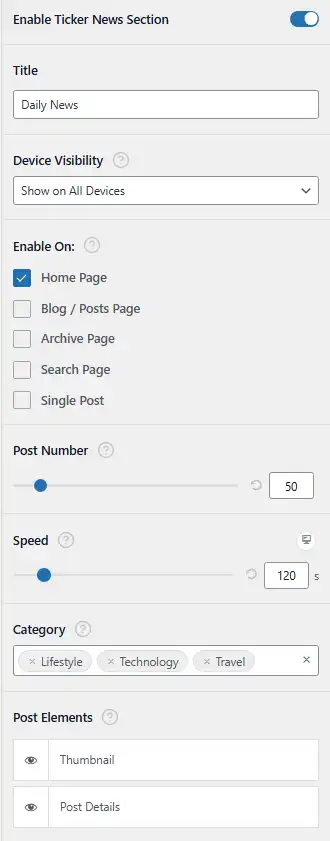
Location and placement #

  • Go to Appearance → Customize → Ticker.
  • When enabled, the ticker bar appears below the header and above the Hero section on the pages you select.

Enable Ticker and basic settings #

  • Enable Ticker News Section
    • Turn this on to display the ticker on your site.
    • When disabled, all other ticker settings are ignored and the marquee is hidden.
  • Title
    • Sets the label shown at the start of the ticker bar (for example, “Daily News”, “Breaking”, “Trending Now”).
    • This appears as a small badge, as shown in the front‑end example.
  • Device Visibility
    • Choose where the ticker should be displayed:
      • Show on All Devices
      • Hide on Desktop / Hide on Tablet / Hide on Mobile (depending on your available options).
    • Use this to disable the ticker for smaller screens if you prefer a cleaner layout.

Where the ticker appears #

  • Enable On
    • Select on which templates the ticker should be visible:
      • Home Page – Displays the ticker on the front page.
      • Blog / Posts Page – Shows it on the main posts page.
      • Archive Page – Displays it on category, tag, or other archives.
      • Search Page – Shows ticker above search results.
      • Single Post – Displays ticker at the top of individual posts.
    • You can check multiple options to show the ticker across multiple areas of your site.

Content settings #

  • Post Number
    • Use the slider or number input to define how many posts are included in the ticker.
    • For example, set it to 10 to rotate through the latest 10 posts from the selected categories.
  • Category
    • Choose one or more categories to pull posts from (for example, Lifestyle, Technology, Travel).
    • The ticker will only display posts that belong to the selected categories, letting you focus on specific news sections.
  • Post Elements
    • Control which elements are shown inside each ticker item:
      • Thumbnail – Shows a small featured image/avatar before the post details, giving a visual cue.
      • Post Details – Displays text details such as date and post title (as seen in the example where the date and title scroll horizontally).
    • Use the “eye” icons to toggle each element on or off.

Speed and responsive behavior #

The ticker is a horizontal marquee of posts that continuously scrolls; speed can be adjusted per device type.

  • Speed
    • Adjust the scroll speed using the slider or number input (in seconds).
    • In Blogsy, speed can be tuned separately for desktop, tablet, and mobile (via device-specific controls attached to the same field), so you can:
      • Use a slower speed on desktop for relaxed reading.
      • Use a slightly faster or optimized speed on mobile so users see more items in a shorter scroll area.

Configure the Ticker section to surface your most important updates prominently, without taking much vertical space and while keeping the main layout clean and focused.

Hero Section – Featured Post Slider or Custom Hero Content
Table of Contents
  • Location and placement
  • Enable Ticker and basic settings
  • Where the ticker appears
  • Content settings
  • Speed and responsive behavior

© 2026 Peregrine Knowledgebase

Powered by WordPress

To the top ↑ Up ↑