
Skip to the content
Peregrine KnowledgebasePeregrine Knowledgebase
  • Go to website
  • Go to website
  • Yelp
  • Facebook
  • Twitter
  • Instagram
  • Email

How can we help you?

Popular Search socialheadersocial mediahowimage

Hester Pro

21
  • Theme Installation
  • Steps after Activating Hester Pro theme
  • Add widgets in sidebar or in Footer widget area
  • Enable front page sections
  • Home Sections
    • Slider Section
    • Info section
    • Service section
    • About section
    • Team section
    • Testimonial section
    • Pricing plan section
    • Call to Action section
    • Gallery section
    • Fun-facts section
    • Feature section
    • Steps to start section
    • Work history / timeline section
    • Workflow section
    • Clients section
    • Extra section
    • Design options

Bloglo Pro & BlogHash Pro common

2
  • Add social media profile links in header
  • Post Formats

ShopWell Pro

59
  • Download & Install ShopWell Addons Plugin
  • How to Install and Activate Required and Recommended Plugins
  • Import Demo
  • Configure Product Images in WooCommerce
  • 🔨 Product Archive Builder
  • 🛠️ Single Product Builder
  • How to change homepage products in the ShopWell free theme?
  • Customizer
    • General
    • Styling
    • Typography
    • Topbar
    • Header
      • Topbar
      • Campaign Bar
      • Header Layout
      • Header specific pages
      • Overriding the Header on Specific Pages
      • Header Builder
      • Sticky Header
      • Header Background
      • Header Elements
        • 🔍 Configuring the Header Search in ShopWell Theme
        • 👤 Account
        • ❤️ Wishlist
        • 🔄 Compare
        • 🛒 Cart
        • 📝 Custom Text
        • Preferences 🌍💱
        • View History
        • 📌 Primary Menu
        • 📌 Secondary Menu
        • 🗂️ Category Menu
        • 🍔 Hamburger Menu
      • Mega Menu
        • Mega Menu Vertical
        • 🍔 Mega Menu Hamburger
        • 🧩 Configure Mega Menu
        • Mega Menu Horizontal
    • Footer
      • Footer
      • Overriding the Footer on specific pages
  • Elementor
    • ⚙️ Elementor Basic Configuration Guide
    • Templates
    • 📢 Popup Builder
    • ShopWell Builder
    • Widgets
      • 🛍️ Product Deals Grid / Carousel
  • Pages
    • 📄 Creating a Page
    • ⚙️ Display Settings
  • Woocommerce
    • 🛒 Getting Started with WooCommerce
    • 📄 WooCommerce Pages
    • 🛒 Customize the Checkout Page
    • 📦 Create an Order Tracking Page
    • 👤 My Account Page Setup in WooCommerce
    • 🛍️ Catalog Mode
  • Shop
    • WishList & Compare
    • 💱 Currency Settings
    • 🛍️ Shop Display
    • 🧩 Product Filters
  • Mobile
    • Topbar
    • Header
    • Footer
    • Miscellaneous
  • Translation
    • Quick Start Guide: TranslatePress

Blogsy Lite

14
  • Installation and Demo Import
  • Customizer : General Options
    • General (Logo, colors, typography and misc)
    • Top bar
    • Header & Footer
    • Blog page / Archive and Single Post
    • Sidebar
    • Breadcrumbs and Dark Mode
  • Customizer: Home sections
    • Highlight Breaking News with the Ticker Section
    • Hero Section – Featured Post Slider or Custom Hero Content
    • Stories
    • Featured Category
    • Featured Links
    • Posts You Might Like
    • Advertisement
  • Home
  • Docs
  • Posts You Might Like
View Categories

Posts You Might Like

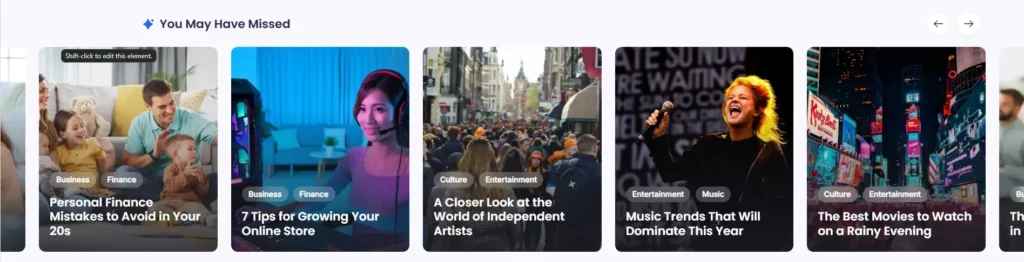
The Posts You Might Like section in Blogsy displays a horizontal slider of recommended posts after the main post feed and before the footer.
It is designed to surface additional content that visitors may have missed, increasing page views and time on site.
Location #

Go to Appearance → Customize → Posts You Might Like.
From here you can enable the section, choose where it appears, and control which posts are included in the slider.

Enable and basic options #

  • Enable Posts You Might Like Section
    • Turn this on to display the slider on your site.
    • When disabled, the section is hidden on all templates.
  • Title
    • Sets the heading displayed above the slider.
    • Example: “You May Have Missed”, “Posts You Might Like”, or “Recommended For You”.
  • Device Visibility
    • Choose where the section should appear based on device:
      • Show on All Devices
      • Hide on Desktop / Tablet / Mobile
    • Useful if you want to hide the slider on smaller screens.
  • Enable On
    • Controls on which templates the section appears. Typical options include:
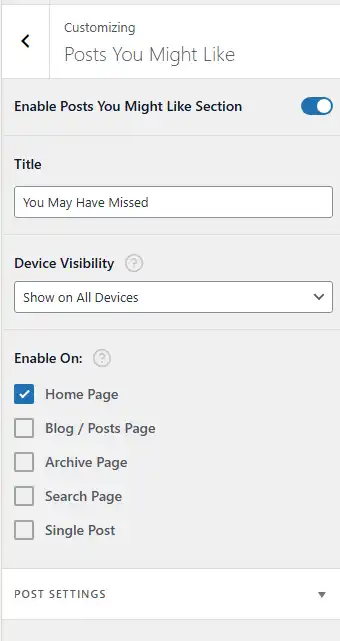
      • Home Page
      • Blog / Posts Page
      • Archive Page
      • Search Page
      • Single Post
    • For example, enabling only Home Page displays the slider under the main post feed of your homepage.

The section is output after the main list of posts and before the footer area on the selected templates.

Post Settings #

The Post Settings panel lets you control which posts are pulled into the slider.

  • Post Number
    • Sets how many posts appear in the slider (e.g., 6, 9, 12).
    • The slider will paginate or scroll through these posts horizontally.
  • Category
    • Limit the recommendations to specific categories (e.g., Business, Entertainment).
    • Leave blank to use posts from all categories.
  • Tags
    • Further filter posts based on tags if you want a more curated set (for example, posts tagged “featured” or “recommended”).
  • Orderby
    • Choose how posts are ordered:
      • Newest – Oldest (default) to show the latest content first.
      • Other order options may be available depending on your implementation (Oldest – Newest, Random, etc.).
  • Post Elements
    • Control which elements appear on each post card inside the slider:
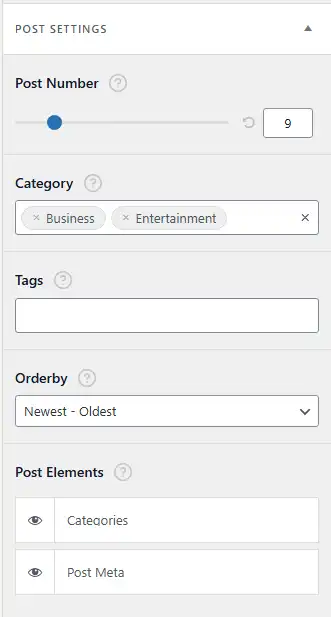
      • Categories – Displays category badges above the title.
      • Post Meta – Shows meta such as author, publish date, or other meta items configured for archives/single posts.
    • Toggle each element using the “eye” icon.

How the slider behaves on the frontend #

  • Posts are displayed as large, full‑width cards with featured image backgrounds, overlaid categories, and titles (matching the overall Blogsy card style).
  • Navigation arrows let visitors scroll through multiple recommended posts.
  • Because the section appears after users have browsed the main feed, it works as a “second chance” to catch their interest and keep them exploring related content.

Use the Posts You Might Like section to automatically highlight extra content your audience will enjoy and reduce the number of visitors who leave after viewing just one page.

Featured LinksAdvertisement
Table of Contents
  • Location
  • Enable and basic options
  • Post Settings
  • How the slider behaves on the frontend

© 2026 Peregrine Knowledgebase

Powered by WordPress

To the top ↑ Up ↑