
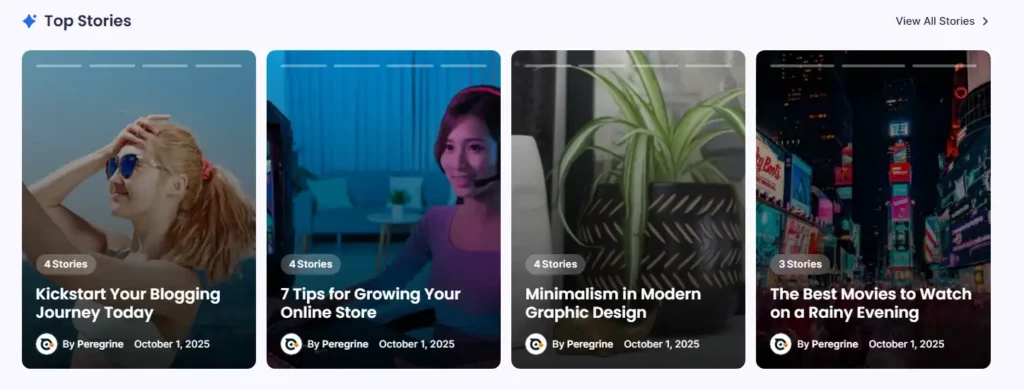
The Stories section in Blogsy lets you highlight groups of posts by category in a horizontal “story cards” layout.
It is ideal for surfacing top topics like Blogging Tips, Business, or Design at the top of your homepage.
Location #
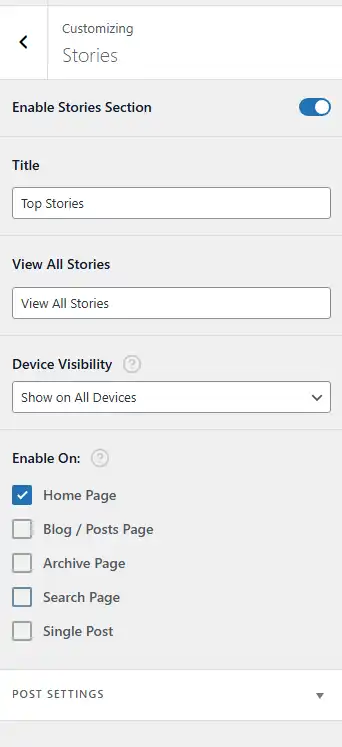
Go to Appearance → Customize → Stories.
From here you can enable the section, choose where it appears, define which categories to show, and control what appears inside each story card.
Enable and basic settings #
- Enable Stories Section
- Turn this on to display the Stories section on your site.
- When disabled, the section is hidden on all pages, regardless of other options.
- Title
- Sets the main heading for this block, for example “Top Stories”.
- This heading appears above the story cards.
- View All Stories
- Text label for the link shown on the right side of the section header (for example “View All Stories”).
- This link typically points to a relevant archive page (e.g., your blog or a key category), depending on how you configure the front-end template.
- Device Visibility
- Decide on which devices the Stories section should be displayed:
- Show on All Devices
- Hide on Desktop / Hide on Tablet / Hide on Mobile (options depend on your implementation).
- Useful if you want to hide this visually rich section on smaller screens.
- Decide on which devices the Stories section should be displayed:
- Enable On
- Choose where the Stories block appears:
- Home Page
- Blog / Posts Page
- Archive Page
- Search Page
- Single Post
- Check one or multiple options to reuse the section across multiple parts of your site.
- Choose where the Stories block appears:
Post Settings #
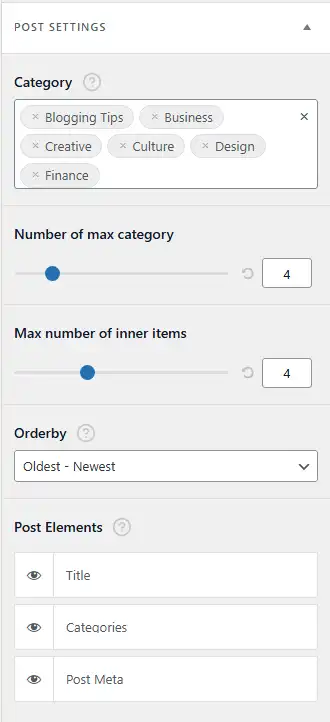
The Post Settings panel controls which categories and posts are used in the Stories layout.
- Category
- Select one or more categories (e.g., Blogging Tips, Business, Creative, Culture, Design, Finance).
- Each chosen category can become a “story group” in the layout.
- Number of max category
- Limits how many of the selected categories are actually displayed as story cards.
- For example, if you select six categories but set this value to 4, only four category cards will be shown.
- Max number of inner items
- Controls how many posts from each category are counted and displayed inside a card (commonly shown as a count such as “4 Stories”).
- For example, setting this to 4 means the card can show “4 Stories” for each category and use those posts internally for thumbnails/meta.
- Orderby
- Decide how the posts for each category are ordered before counting:
- Oldest – Newest
- Newest – Oldest or other available order options.
- This affects which posts contribute to the count and meta displayed in each card.
- Decide how the posts for each category are ordered before counting:
- Post Elements
- Control which elements appear on each story card:
- Title – Shows the category or story title on the card.
- Categories – Displays category labels or related taxonomy tags.
- Post Meta – Shows meta information such as author and date (as in the example: “By Peregrine — October 1, 2025”).
- Use the “eye” icon next to each item to show or hide it.
- Control which elements appear on each story card:
Visitors can click a story card to navigate to that category/archive and explore all posts related to that topic, making it a powerful way to promote your key content pillars on the homepage.